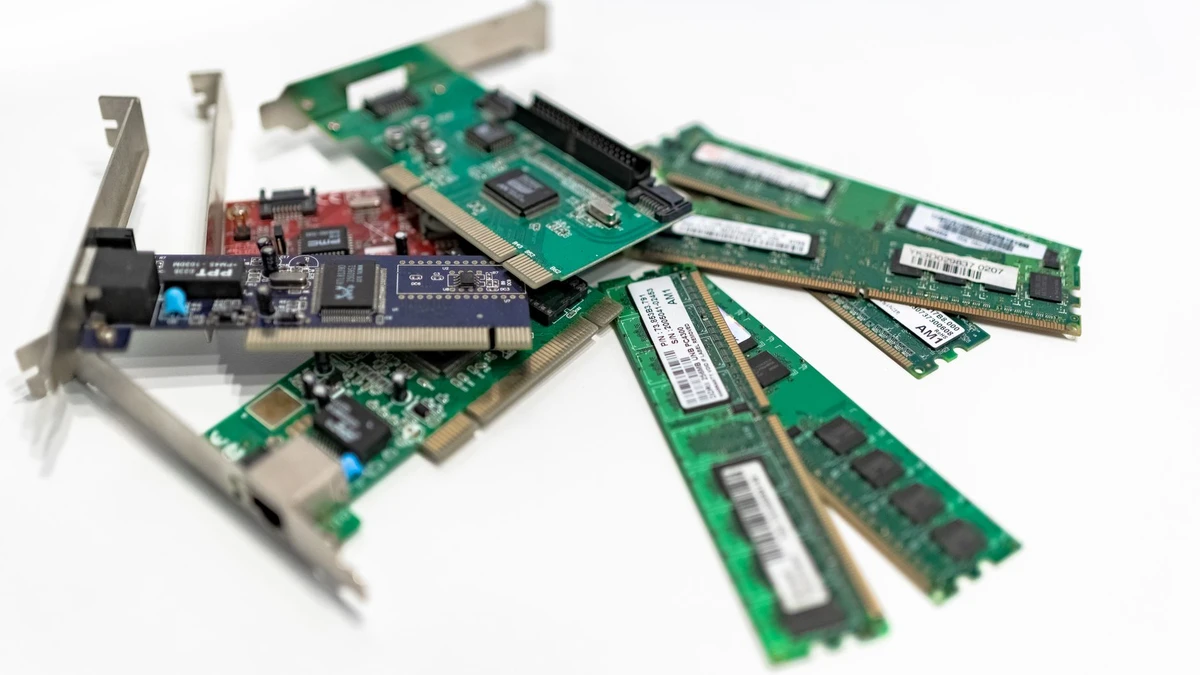
RAM vs Storage: What Each One Does and How Much You Need
A computer can have plenty of empty disk space and still feel slow. It can also have lots of RAM and refuse to save one more photo. That confusion is understandable because RAM and storage are both commonly listed in gigabytes, but they do completely different jobs.
For most people shopping for a laptop, upgrading a desktop, or trying to explain a slow computer, the useful question is not simply “Which number should be bigger?” It is: Is the computer short on working space right now, or short on a place to keep files permanently?
This guide focuses on that practical distinction and on choosing sensible amounts of each. It does not get deep into processor generations, graphics cards, or the finer points of memory timings. Those matter in some builds, but they are not necessary to make a good RAM and storage decision.
RAM vs storage at a glance
Think of your computer as a desk and a filing cabinet.
- RAM is the desk. It holds the files, tools, and projects you are actively using. A larger desk lets you spread out more work without constantly putting things away and retrieving them.
- Storage is the filing cabinet. It keeps your operating system, apps, documents, photos, games, and downloads when the computer is off.
RAM is fast but temporary. Storage is persistent but generally slower than RAM, even when it is a fast solid-state drive (SSD).
| Feature | RAM | Storage |
|---|---|---|
| Main purpose | Holds active programs and data | Keeps files and software long term |
| Keeps data after shutdown? | No | Yes |
| Typical units | 8GB, 16GB, 32GB | 256GB, 512GB, 1TB, 2TB |
| What happens when it is low | Apps slow down, reload, or stutter | You cannot save, install, download, or update easily |
| Common upgrade | Add or replace memory modules, if supported | Add or replace an SSD or hard drive, if supported |
The desk-and-filing-cabinet comparison is not perfect, but it explains the part that matters: adding a larger filing cabinet does not create more room to work on the desk. Likewise, installing more RAM does not create extra room for your photo library.
What RAM actually does while you use a computer
RAM stands for random access memory. Your operating system uses it as a high-speed workspace for the tasks currently in front of you.
When you open a web browser, the browser and its tabs use RAM. When you edit a spreadsheet, join a video call, play a game, or switch between a photo editor and a folder of images, those programs use RAM too. The computer keeps active data there because it can access it far more quickly than it can from permanent storage.
More RAM does not automatically make every task faster. If you open one document and browse a few websites, moving from 16GB to 32GB may not feel different. The benefit appears when your normal workload needs more memory than the system has available.
When RAM fills up, the operating system moves some less-active information to storage temporarily. This is often called paging or swapping. Modern SSDs make that less painful than it used to be with mechanical hard drives, but storage is still much slower than RAM. The result can be a computer that pauses, stutters, takes longer to switch applications, or reloads browser tabs you expected to remain open.
A familiar example is a laptop with 4GB of RAM running a video meeting, several browser tabs, and a document editor. None of those activities sounds demanding on its own. Together, they can exceed the available workspace and make the whole system feel strained.
RAM affects multitasking more than file capacity
The practical signs of too little RAM often look like multitasking problems:
- Browser tabs refresh when you return to them.
- Switching between applications takes noticeably longer.
- A game stutters while other programs run in the background.
- A photo editor or video editor becomes sluggish with large files.
- The computer slows down despite having plenty of free SSD space.
These signs are not proof that RAM is the only issue. A weak processor, overheating, malware, or a nearly full storage drive can also hurt performance. Still, if the slowdown happens mainly when many apps or tabs are open, RAM is a likely limitation.
What storage does after you close an app
Storage is where your computer keeps information for the long haul. It contains the operating system, installed software, user accounts, documents, media files, saved games, and anything you download.
The storage amount you need is driven less by multitasking and more by what you keep. Someone who mostly works in a browser and stores files online may do well with a modest drive. Someone who keeps years of phone photos, works with video, downloads large games, or saves project files locally will fill the same drive quickly.
The main types are:
- SSD: The usual choice in current computers. SSDs are fast, quiet, and durable because they have no moving parts.
- Hard disk drive (HDD): Usually cheaper per gigabyte and still useful for bulk archives, but slower and more vulnerable to physical shock.
- External storage: An external SSD or hard drive can expand file capacity and help with backups, though it is less convenient for apps you use every day.
Storage speed matters as well as capacity. Replacing a hard drive with an SSD can make startup, application launches, and file transfers feel dramatically quicker. But an SSD does not substitute for enough RAM. It improves how quickly data can be loaded; RAM is where active work stays while it is being used.
Why a nearly full drive can slow a computer down
A full or nearly full drive creates more than a housekeeping problem. Operating systems and applications need room for updates, temporary files, caches, and virtual memory. If free space becomes scarce, updates may fail and general performance can suffer.
As a practical habit, avoid treating the listed capacity as fully usable. A 256GB drive does not provide a comfortable 256GB for personal files after the operating system, recovery files, applications, and routine overhead take their share. Leave a reasonable amount of free space rather than waiting for storage warnings.
How much RAM do you need?
The right amount depends on what you do simultaneously, not on how many files you own. A large movie collection requires storage, not extra RAM. Thirty browser tabs, a video call, and a design app at the same time point toward more RAM.
8GB: basic use, with little room to spare
8GB can handle email, web browsing, streaming, documents, and light schoolwork. It is still usable for a simple, focused workload, especially on a well-maintained computer with an SSD.
The limitation shows up quickly when you multitask. Modern browsers, communication apps, and operating systems all have a larger memory appetite than they once did. For a new general-purpose Windows laptop or desktop, 8GB is better viewed as an entry point than a comfortable long-term target.
16GB: the practical default for most people
For many buyers, 16GB is the sweet spot. It handles everyday work, frequent browser use, video calls, moderate multitasking, and many games without making you constantly manage open applications.
It is a sensible choice for students, home users, office work, and people who want a computer to remain comfortable for several years. It also gives the operating system some breathing room for background tasks and updates.
32GB: worthwhile for heavier workloads
32GB makes sense if you regularly edit high-resolution photos, work with large design files, play demanding games while keeping other apps open, run virtual machines, write code in large development environments, or do moderate video editing.
It can also be a practical choice for people who know they keep many apps open all day. That does not mean every power user needs 32GB. If your heaviest work is web-based documents and email, the money may be better spent on a larger SSD or a better overall computer.
64GB and beyond: specialized work
Higher capacities are usually for demanding creative production, multiple virtual machines, large data projects, advanced 3D work, and other professional workloads. Buying this much RAM “just in case” is rarely a good use of a limited budget.
Before paying for more memory, look at the applications you actually use. Some software publishes recommended memory ranges for specific project types, and those requirements are more useful than a generic rule.
How much storage do you need?
Storage choices are often more personal because file collections vary wildly. A person who streams music and movies and uses cloud storage can have very different needs from someone who keeps local raw photos or installs several large games.
256GB: workable, but easy to outgrow
A 256GB SSD can work for lightweight use: web apps, documents, a modest photo collection, and a few installed programs. It is most comfortable when you regularly move older files to external storage or a cloud service.
The catch is flexibility. Operating system updates, apps, downloaded files, and media can consume space sooner than expected. It is not a great fit for a gaming library, local video editing, or years of photos stored on the device.
512GB: a comfortable starting point for many new computers
For a general-purpose laptop or desktop, 512GB is often the most balanced storage choice. It provides room for the operating system, everyday applications, documents, photos, and a reasonable number of larger files without immediate cleanup.
If two otherwise similar computers differ only between 256GB and 512GB, the 512GB model is often easier to live with, particularly when the storage cannot be upgraded later.
1TB: a strong choice for games, media, and local projects
A 1TB SSD suits people who install several large games, keep substantial photo and video libraries locally, or work with projects that generate many files. It also reduces the need to constantly decide what to delete before installing something new.
It is not automatically necessary for everyone. If your files are well organized elsewhere and most of your computing happens online, extra capacity may sit unused.
2TB or more: large local libraries and creative files
Consider 2TB or more when local storage is central to your work or hobbies. Examples include large game libraries, video production, extensive photo archives, music production projects, or offline media collections.
Even then, do not confuse capacity with backup. One large internal drive can fail. Important files should exist in more than one place, using a backup approach that fits your devices and tolerance for loss.
Choosing the right balance for your situation
If your budget forces a choice, start by identifying the problem you are trying to prevent.
| Your typical use | RAM to target | Storage to target | Why |
|---|---|---|---|
| Email, browsing, streaming, documents | 8GB minimum; 16GB preferred | 256GB to 512GB SSD | Everyday tasks benefit from enough headroom and fast startup |
| School or office work with lots of tabs and calls | 16GB | 512GB SSD | Multitasking is more likely to be the frustration than file size |
| PC gaming | 16GB; 32GB for heavier multitasking or demanding setups | 1TB SSD preferred | Games consume substantial disk space, while memory needs vary by game and background apps |
| Photo editing and design | 16GB to 32GB | 1TB SSD or more | Large working files need RAM; libraries and exports need storage |
| Video editing or virtual machines | 32GB or more, depending on projects | 1TB to 2TB SSD or more | Both active workloads and source files can be demanding |
A few practical buying rules help:
- Prioritize an SSD over a hard drive for the main system drive. A computer with modest capacity on an SSD usually feels more responsive than one relying on a large mechanical drive.
- Choose 16GB RAM before overspending on storage you will not use. For typical productivity systems, this is often the better comfort upgrade.
- Choose more storage when files or games are already filling your current device. No amount of RAM fixes a drive that has no room for the things you need to keep.
- Check whether upgrades are possible. Many thin laptops have soldered RAM or limited internal drive options. A desktop is usually more forgiving, but not always.
- Do not buy capacity based only on the sticker. Check how much of your current RAM and storage you actually use during a normal week.
Common mistakes when comparing RAM and storage
Assuming gigabytes mean the same thing
A listing with 16GB of RAM and 512GB of storage is not offering two versions of the same resource. The smaller RAM number is normal because it serves as temporary workspace. The larger storage number holds everything permanently.
Buying extra RAM to solve a full-drive warning
If the computer says storage is full, adding RAM will not make room for photos, downloads, or applications. Delete unnecessary files, move archives, uninstall unused software, or upgrade storage instead.
Buying a huge SSD to solve browser slowdowns
A larger drive may be useful, but it will not stop a memory-starved computer from reloading tabs. For persistent slowdowns during multitasking, check RAM usage and the number of applications running.
Ignoring upgrade limits
Some devices allow an SSD replacement but no RAM upgrade. Others have available memory slots but use an unusual storage format. Check the specific model before assuming you can add parts later. This matters most when a lower-priced configuration is tempting but constrained.
Treating cloud storage as a full replacement for local storage
Cloud services are useful for syncing and access across devices, but they still rely on local space for apps, temporary files, and often synced copies. They also depend on your internet connection and account settings. They are part of a storage plan, not a substitute for understanding local capacity.
Check what is limiting your current computer
Before upgrading, spend a few minutes observing the system during the task that feels slow.
On Windows, open Task Manager and look at the Performance tab while you use the computer normally. On a Mac, use Activity Monitor and review Memory and Storage. You are looking for a pattern, not one momentary spike.
- If memory use stays high and performance worsens when several apps are open, more RAM may help.
- If storage is nearly full, clear space or plan a storage upgrade.
- If neither is under pressure, the cause may be the processor, graphics hardware, battery power mode, software clutter, heat, or a failing drive.
Also distinguish between capacity and speed. A 1TB hard drive gives more room than a 512GB SSD, but the SSD will generally make the operating system and programs feel faster. For a main drive, speed often matters as much as capacity.
Make the purchase decision in this order
Start with the workload, then check upgrade options, then compare configurations. For a new everyday computer, 16GB of RAM and a 512GB SSD is a dependable starting point. Move toward 1TB storage if you keep games, media, or project files locally. Move toward 32GB RAM if your regular work involves demanding creative apps, virtual machines, or consistently heavy multitasking.
Most importantly, match the upgrade to the symptom. RAM gives active programs room to work. Storage gives your files a place to live. Once that distinction is clear, the specifications on a computer listing become much easier to judge.